

Overview
Custom domains let you share your forms on your own web address instead of a Formbox link. That makes your forms feel more polished, easier to remember, and more on-brand. A single domain can show multiple forms at different addresses. For example, one form can live at your domain root and another can live at a simple path like/contact.
Only published forms can use custom domains.
You can manage custom domains from the Domains page in your dashboard. Anyone with Admin or Member access can add a domain, verify it, and connect forms.
Adding a custom domain
- Navigate to Domains in your organization’s dashboard sidebar.
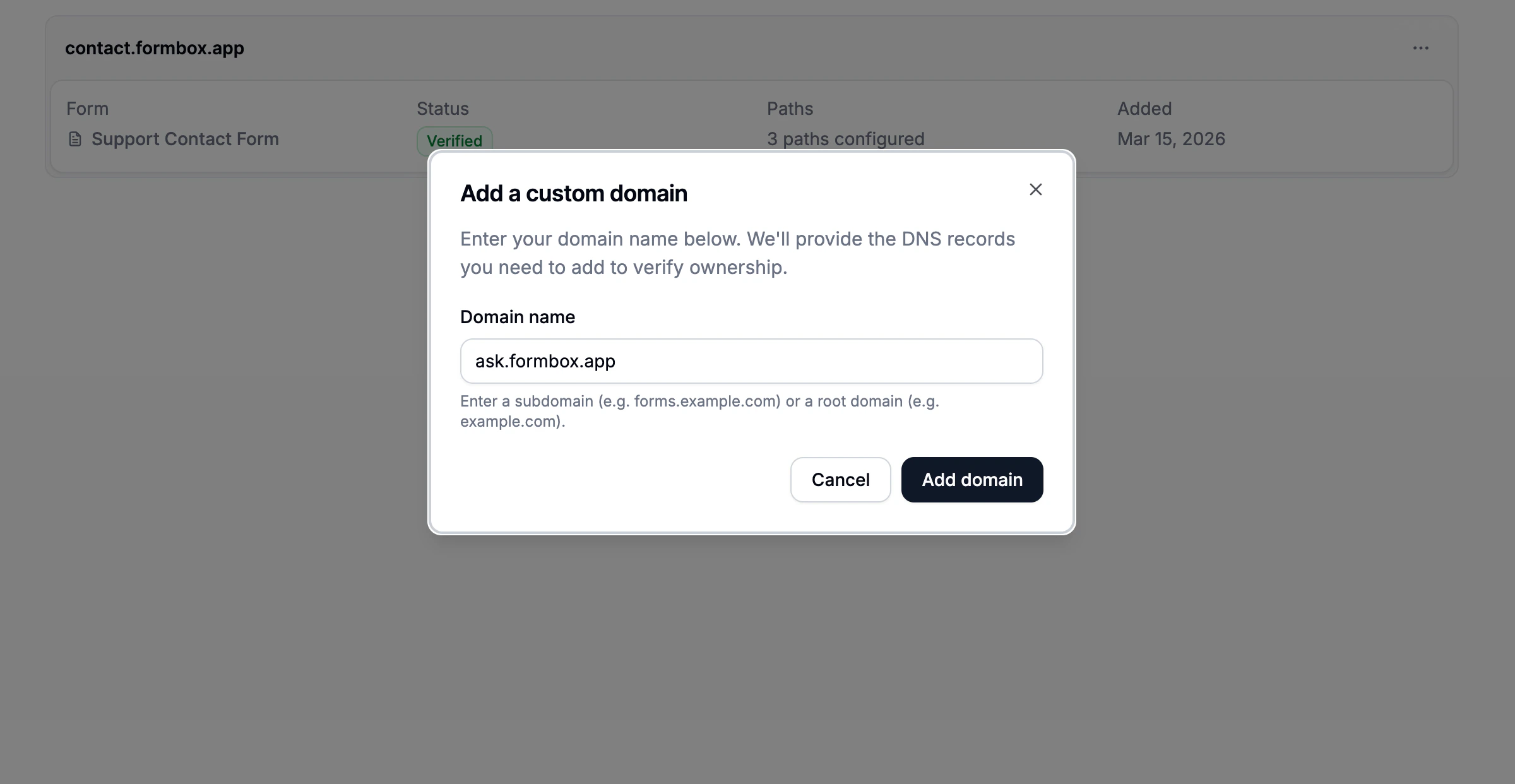
- Click Add domain.
- Enter your domain name. This can be a subdomain like
forms.example.comor your main domain likeexample.com. - Click Add domain.
Verifying your domain
After adding your domain, click on it in the Domains list to open the domain detail page. From here you can see its current status and add your DNS records.Check your status
The Overview tab shows the current verification status of your domain.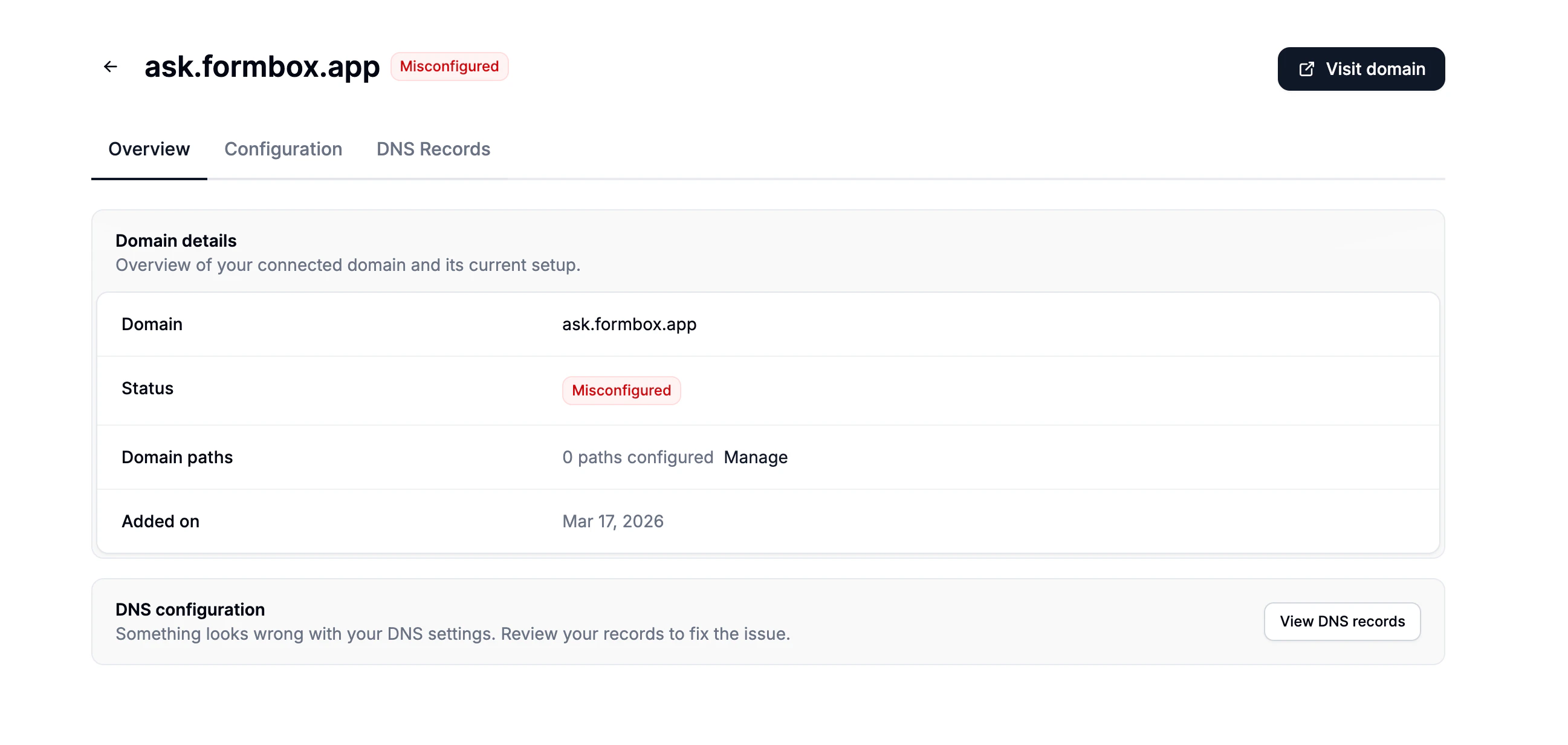
Add DNS records
Open the DNS Records tab to see exactly which records to add. You’ll need to log in to wherever you manage your domain (such as GoDaddy, Namecheap, Cloudflare, or similar) and add the records shown.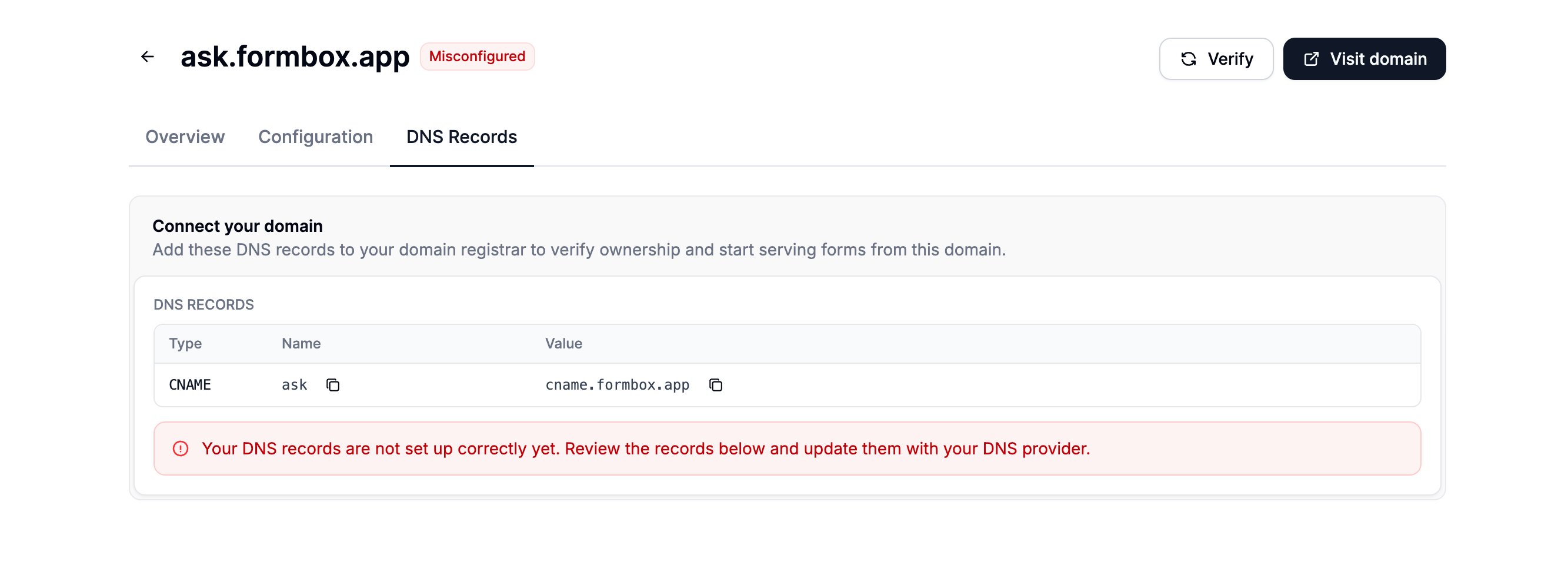
- Subdomains (e.g.
forms.example.com): Add a CNAME record with the value shown in Formbox. - Root domains (e.g.
example.com): Add an A record with the IP address shown in Formbox.
DNS changes can take anywhere from a few minutes to 48 hours to take effect, depending on your
domain provider. Most changes go through within a few minutes.
Set up where your forms live
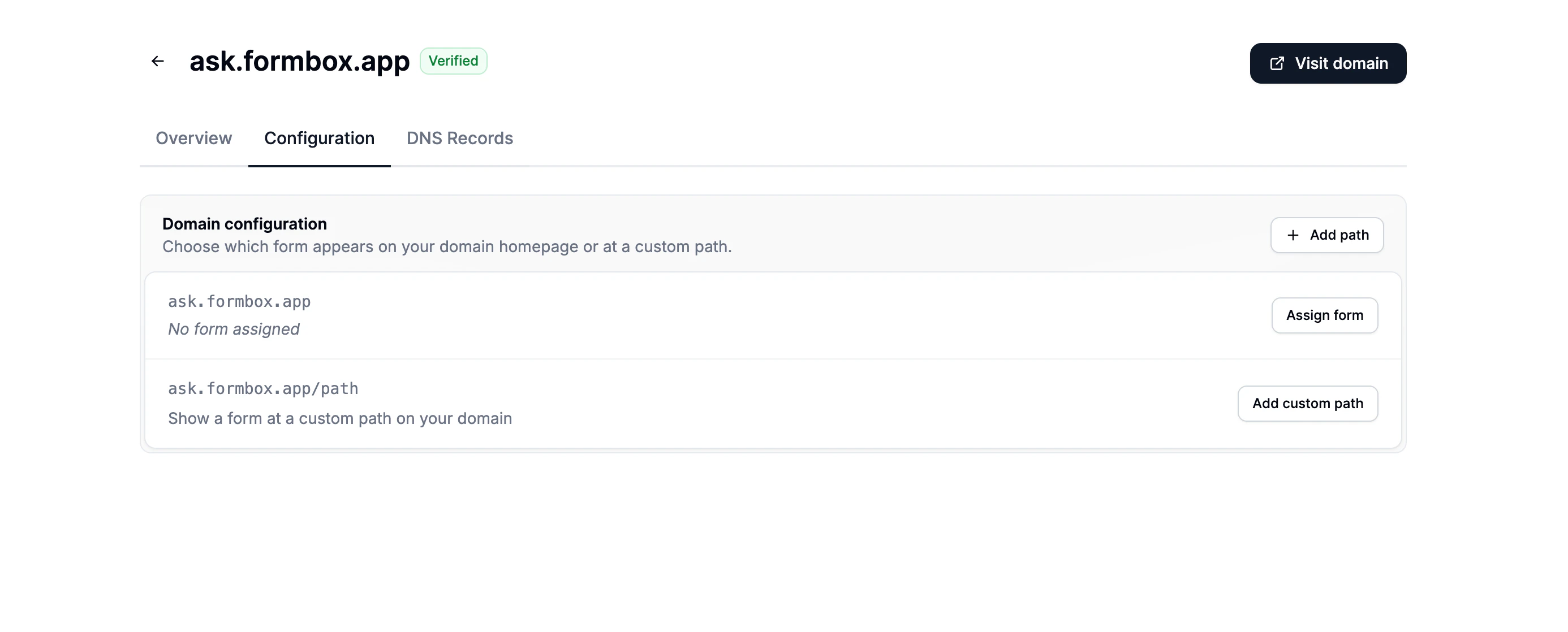
Once your domain is verified, you can connect forms to it from the domain’s Configuration tab. Each connection maps a web address on your domain to a specific form.- Go to the Domains page and click on your verified domain.
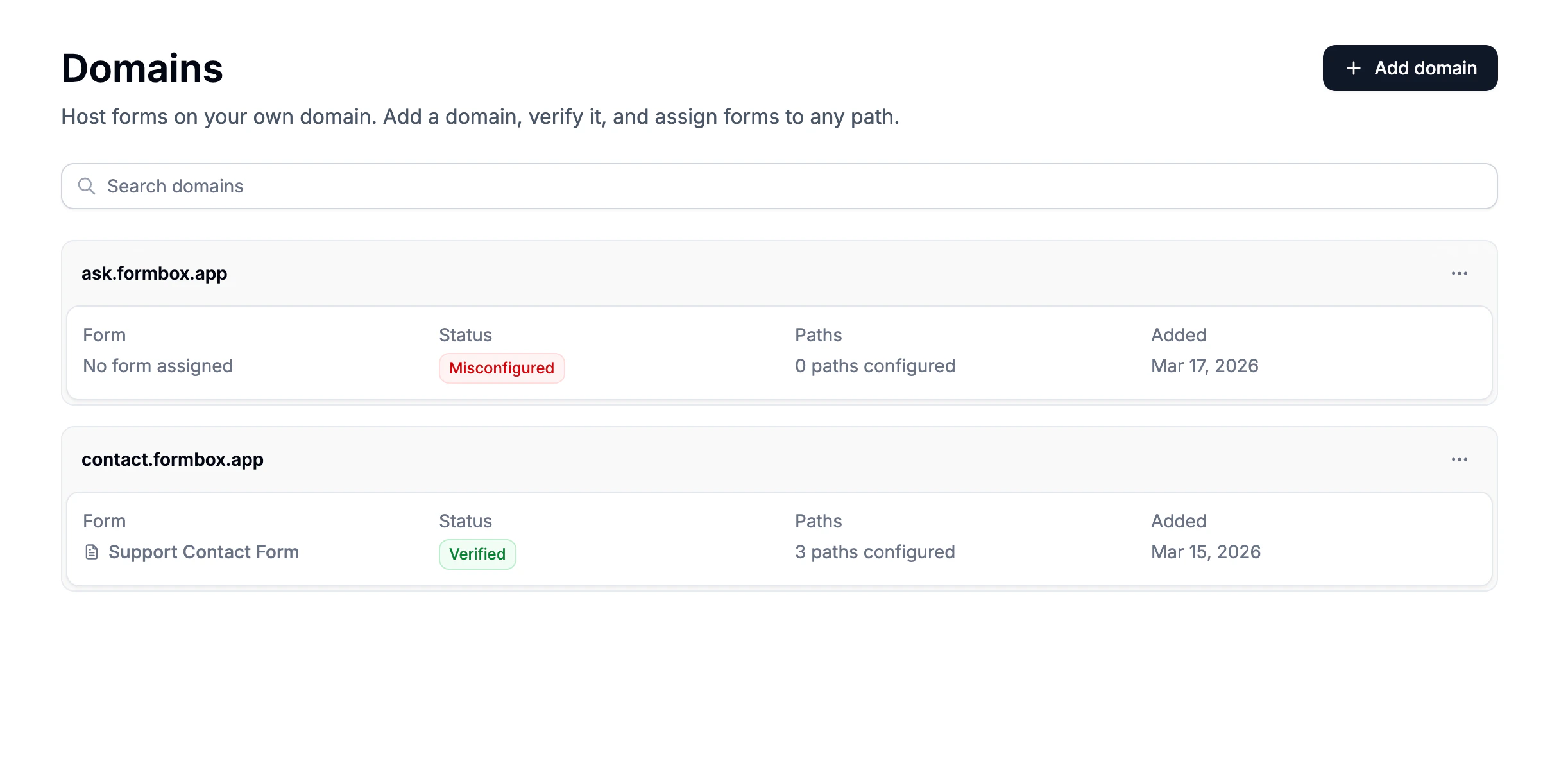
- Open the Configuration tab.
Show a form at your domain root
Click Assign form next to your domain name. Pick a form from the dropdown and click the checkmark to save.Show a form at a custom path
Click Add custom path (or the Add path button in the top right) and enter a short path likecontact. Pick a form from the dropdown and click the checkmark to save.
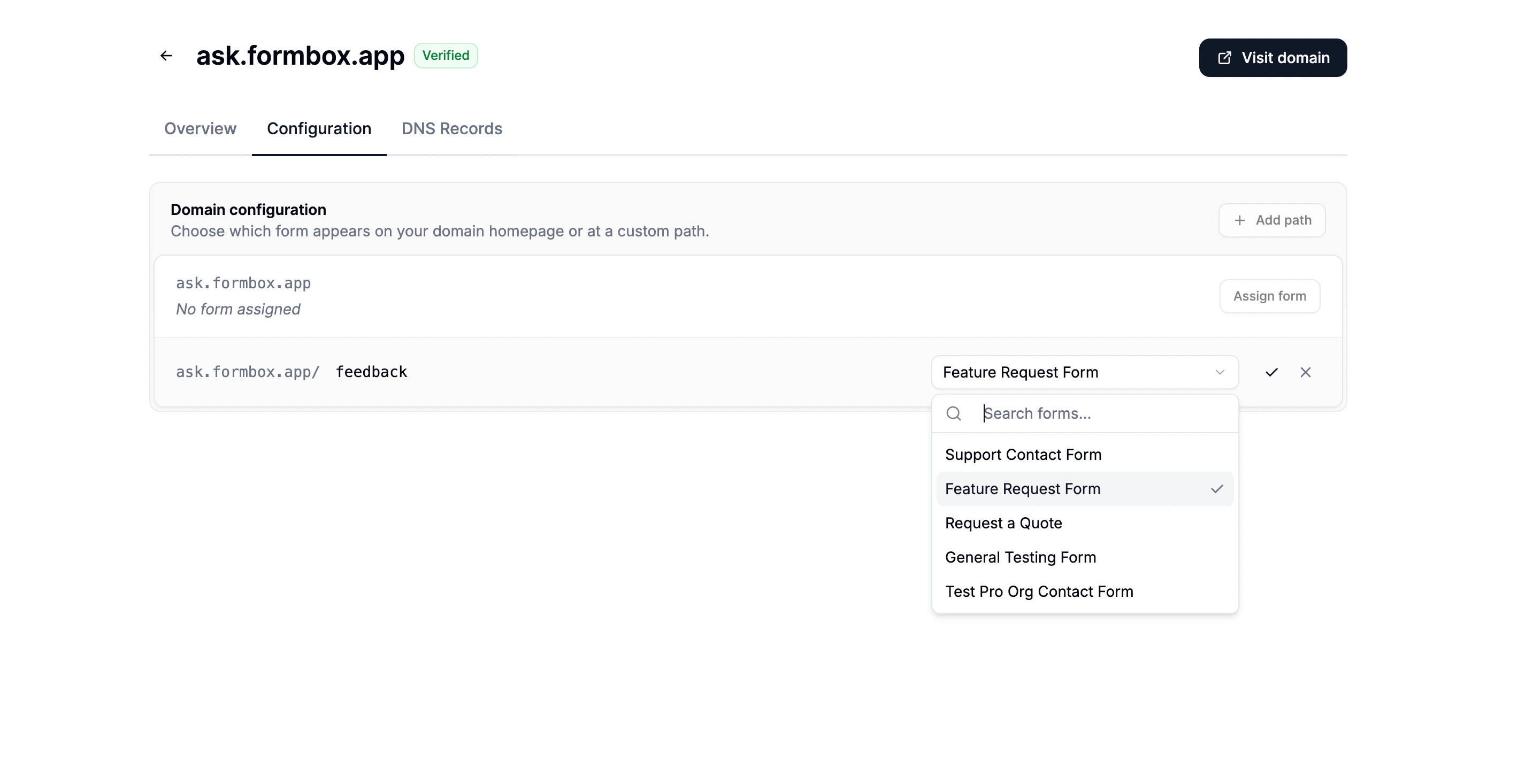
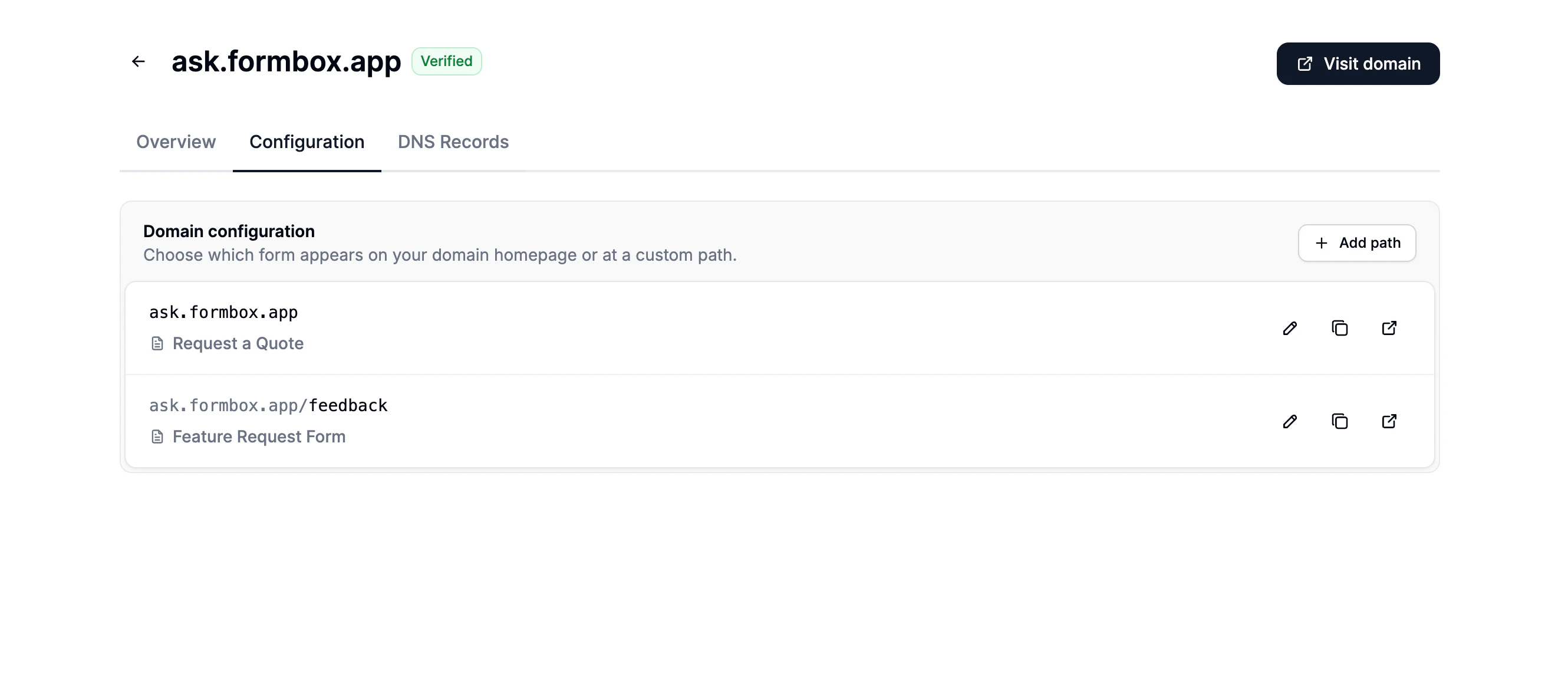
Keep paths short and simple. Multi-level addresses like
/events/spring-registration are not
supported yet.Connecting from within a form
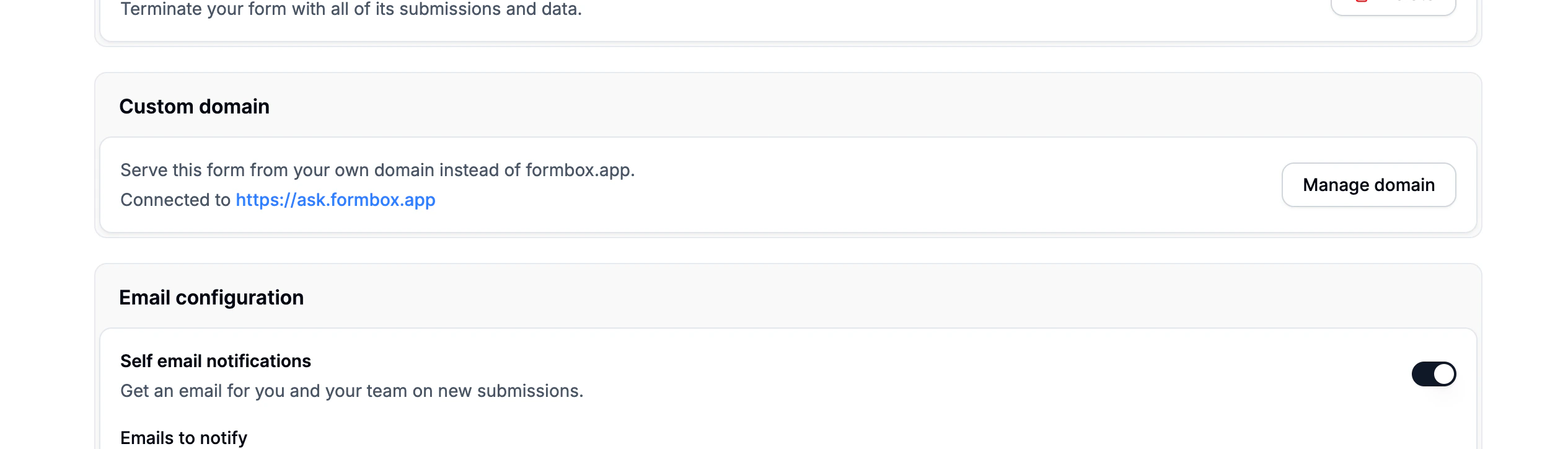
You can also start the setup from inside a form:- Open the form and go to the Settings tab.
- Scroll down to the Custom domain section.
- Click Connect domain. This takes you to the Domains page where you can set up a path for this form.

Custom domains only work with forms that are meant to be shared publicly.
Sharing your form
Once a path is set up for your form, the Share tab will show your custom domain URL as the main link to share. Your original Formbox URL will still work as a backup.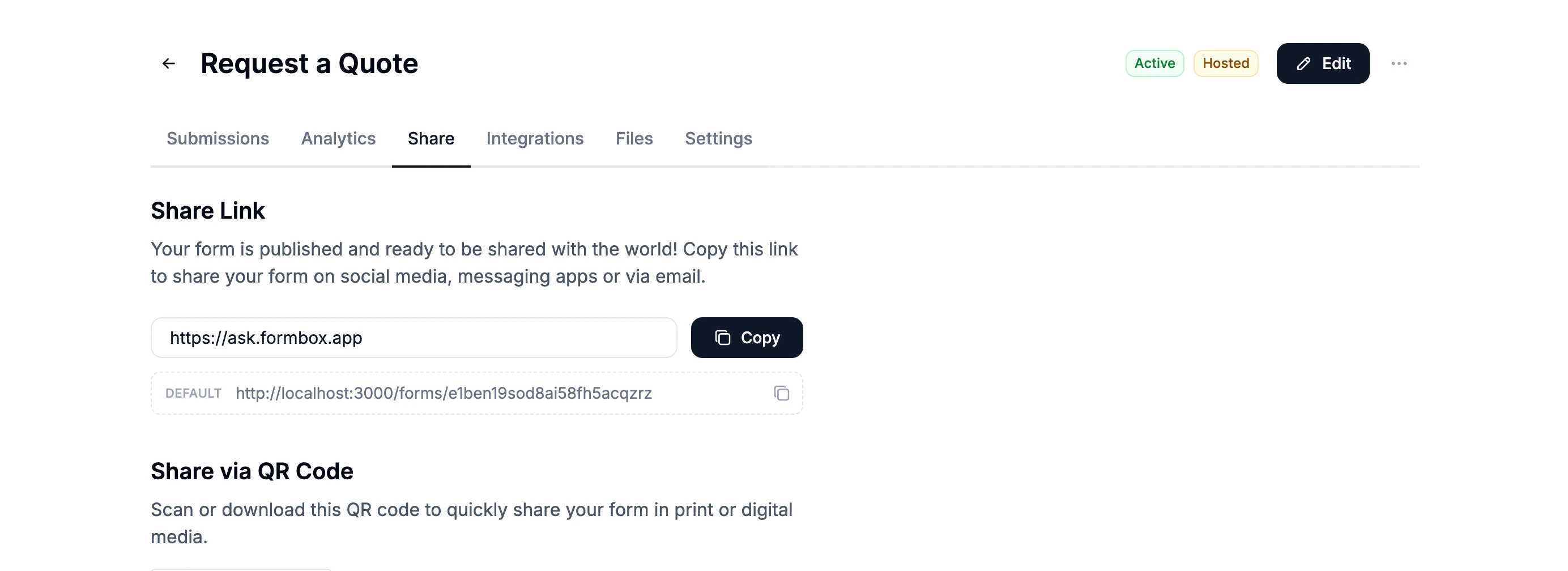
Changing a path
If you update the address for a form (for example, changing/signup to /register), the old address keeps working automatically. Anyone who saved or shared the old link will still reach the form. Old addresses are cleaned up when the form is fully disconnected from the domain.
Removing a custom domain
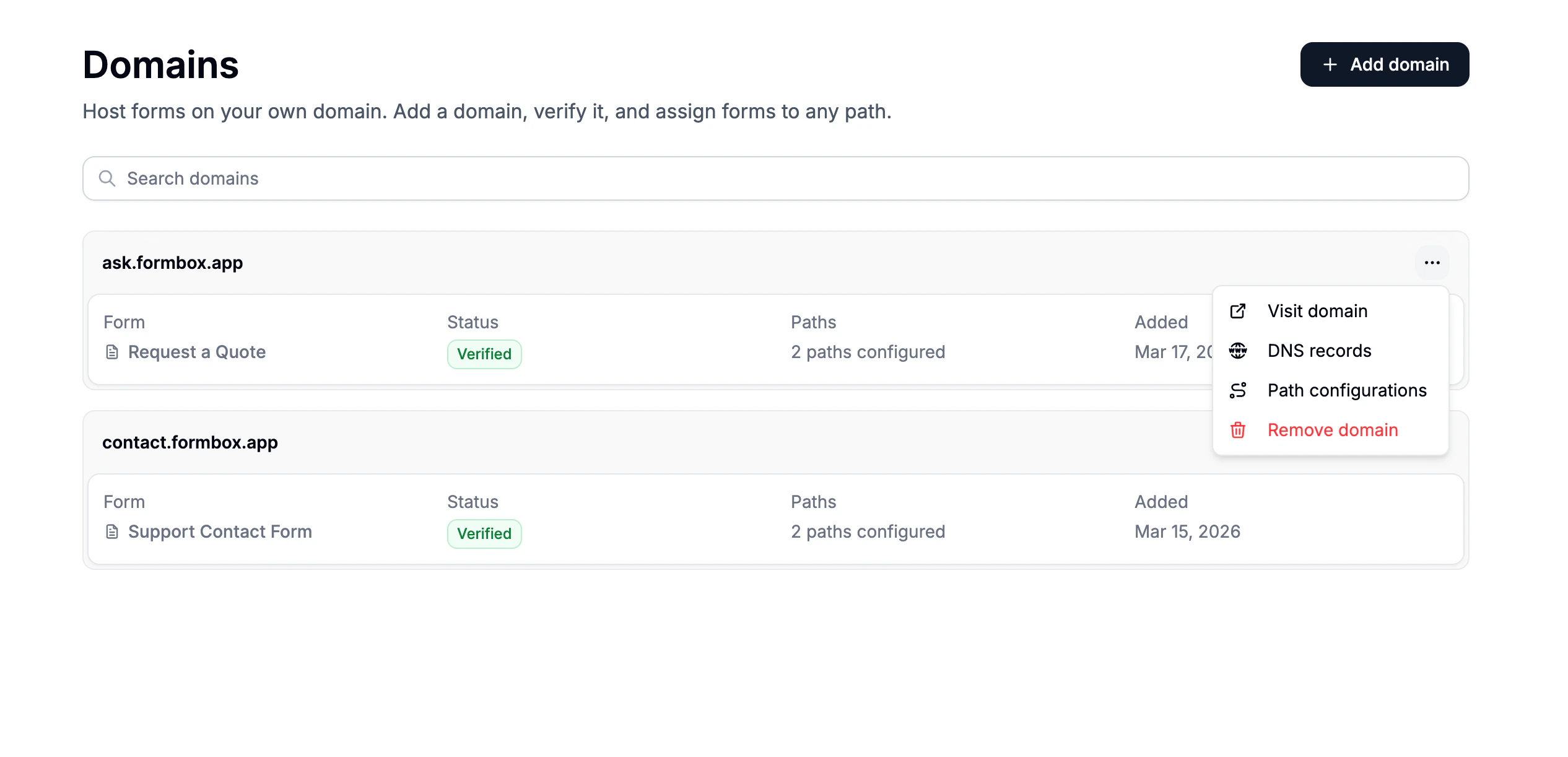
- Go to the Domains page in your organization dashboard.
- Click the more options menu (three dots) on the domain you want to remove.
- Select Remove and confirm.
Troubleshooting
Domain is stuck on “Misconfigured”
- Double-check that the DNS records in your domain provider match exactly what Formbox shows.
- Make sure you’re updating the right domain if you manage several.
- Wait a few minutes and click Refresh. DNS changes can take time to take effect.
- Check that you used the correct record type: subdomains need a CNAME record, root domains need an A record.
Visiting my domain shows a “not found” page
- A path only works if you have explicitly set it up in the Configuration tab. Formbox does not create any paths automatically.
- If you want your domain root to show a form, click Assign form next to your domain name in the Configuration tab.
The TXT verification record is not being detected
- Make sure the TXT record is added to the exact hostname shown in Formbox (it often starts with
_vercel). - Some domain providers want you to leave out your domain name from the record name field. Check your provider’s help docs if you are unsure.