> ## Documentation Index
> Fetch the complete documentation index at: https://docs.formbox.app/llms.txt
> Use this file to discover all available pages before exploring further.
# Google Sheets
> With the Google Sheets integration, you can send your Formbox form submissions straight to a Google Sheet.
This is a great way to manage and share your form results with your team and create visual reports of your data.
## How it works
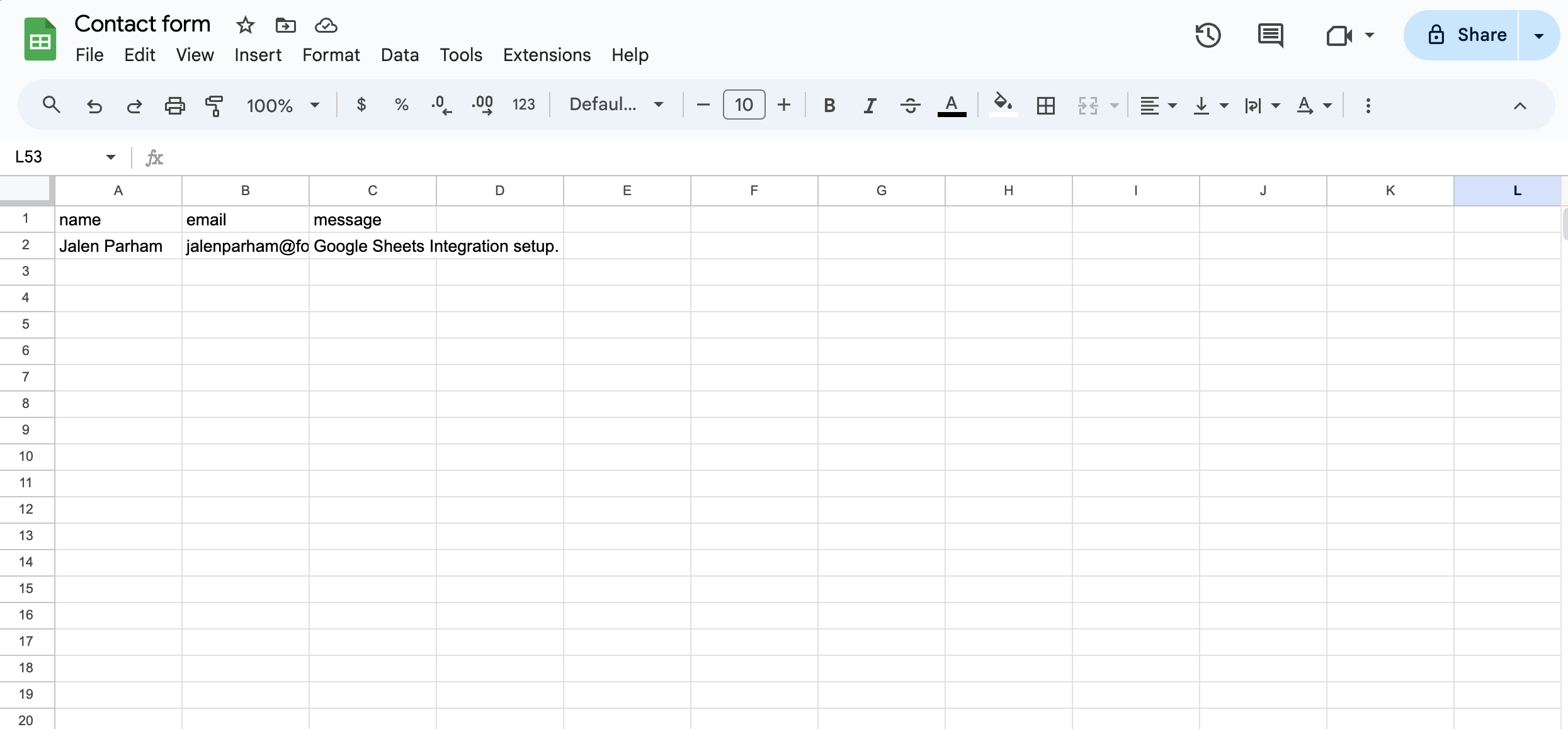
Once the integration is set up, a new row is automatically added to your Google Sheet every time someone submits your form.
## Setting up the integration
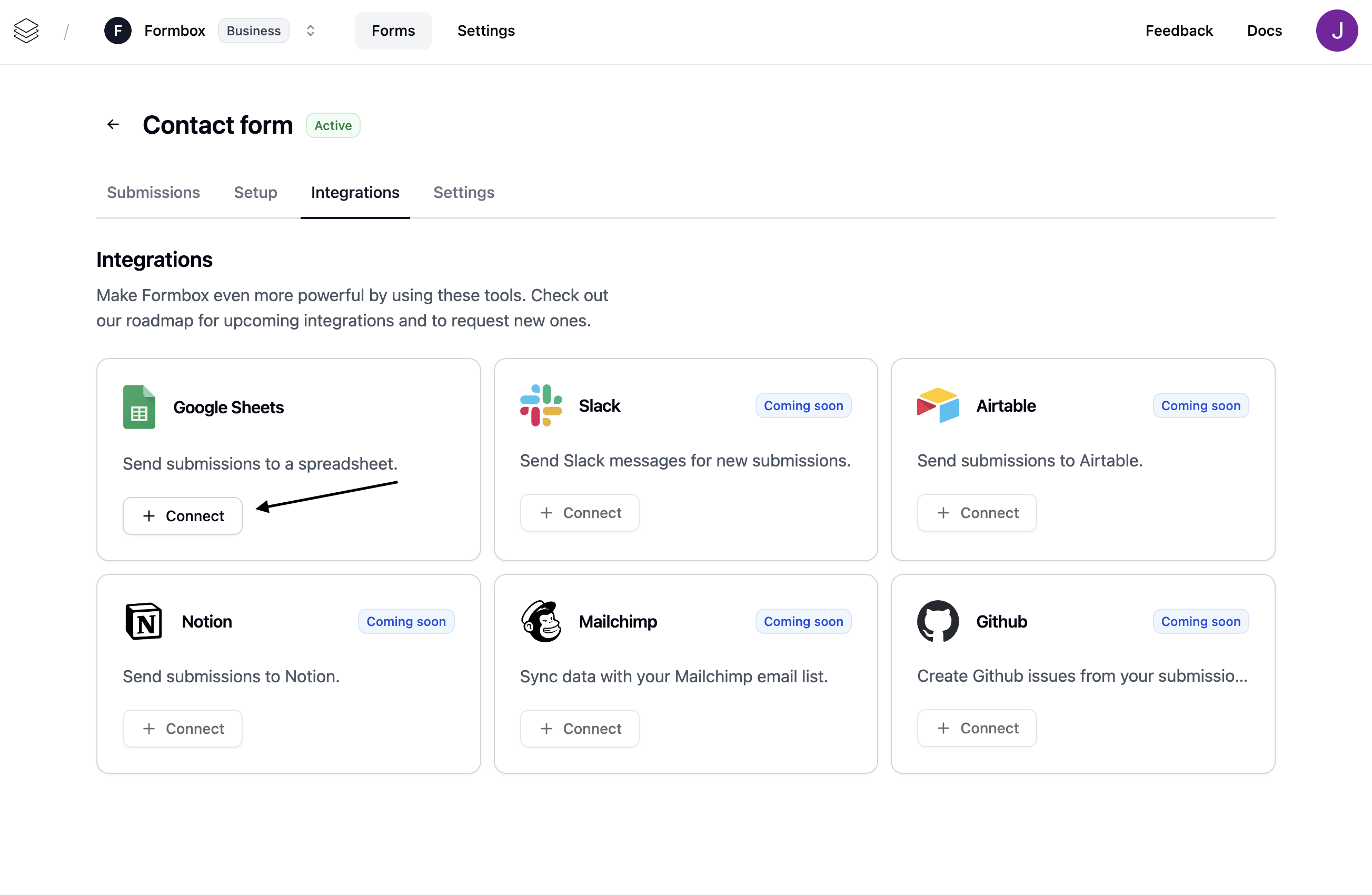
Go to the **Integrations** tab of your Formbox form and click **Connect** on the Google Sheets integration.
 A window will pop up, prompting you to connect your Google account. Select the Google account you want to use and allow Formbox to access your Google Sheets.
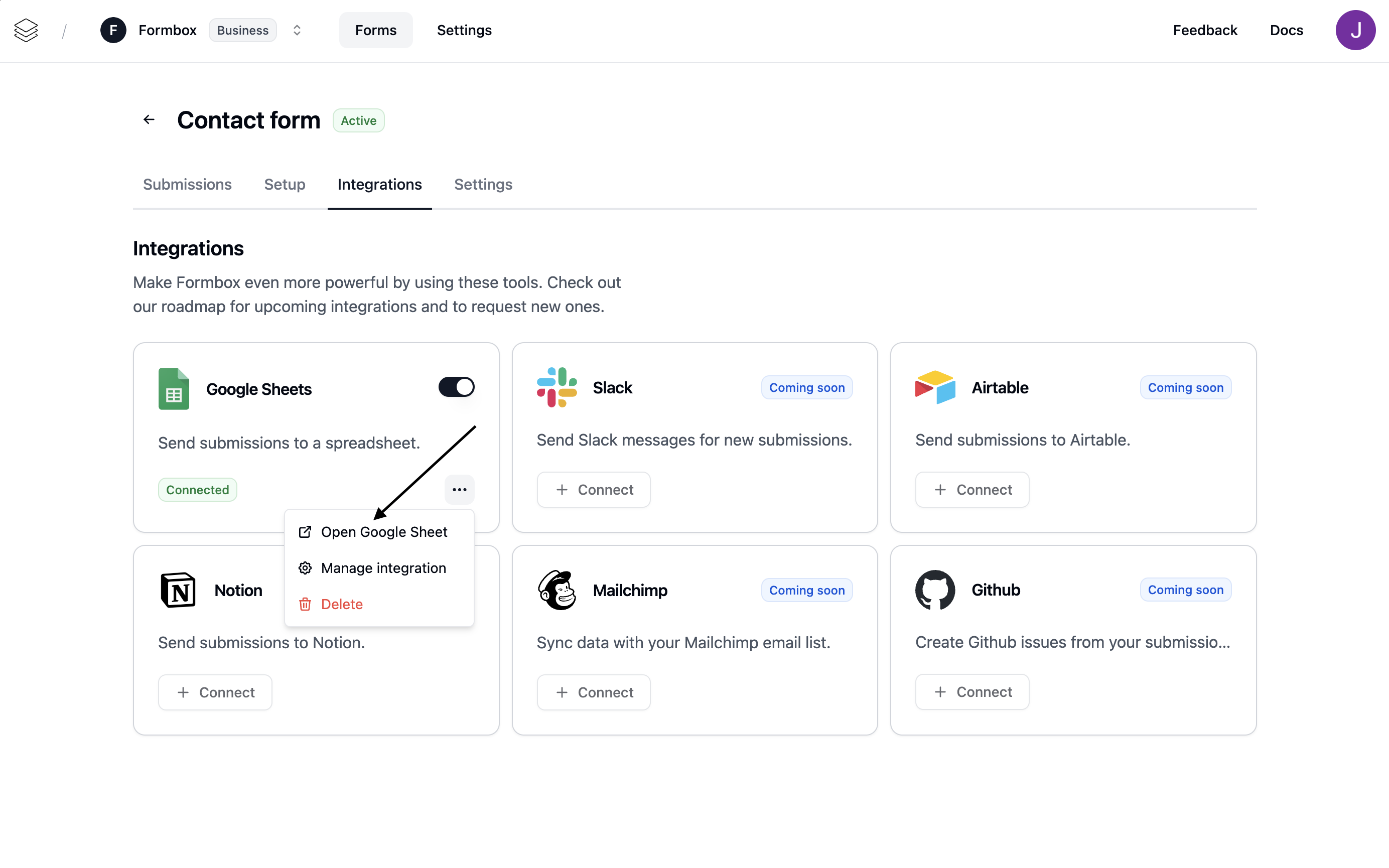
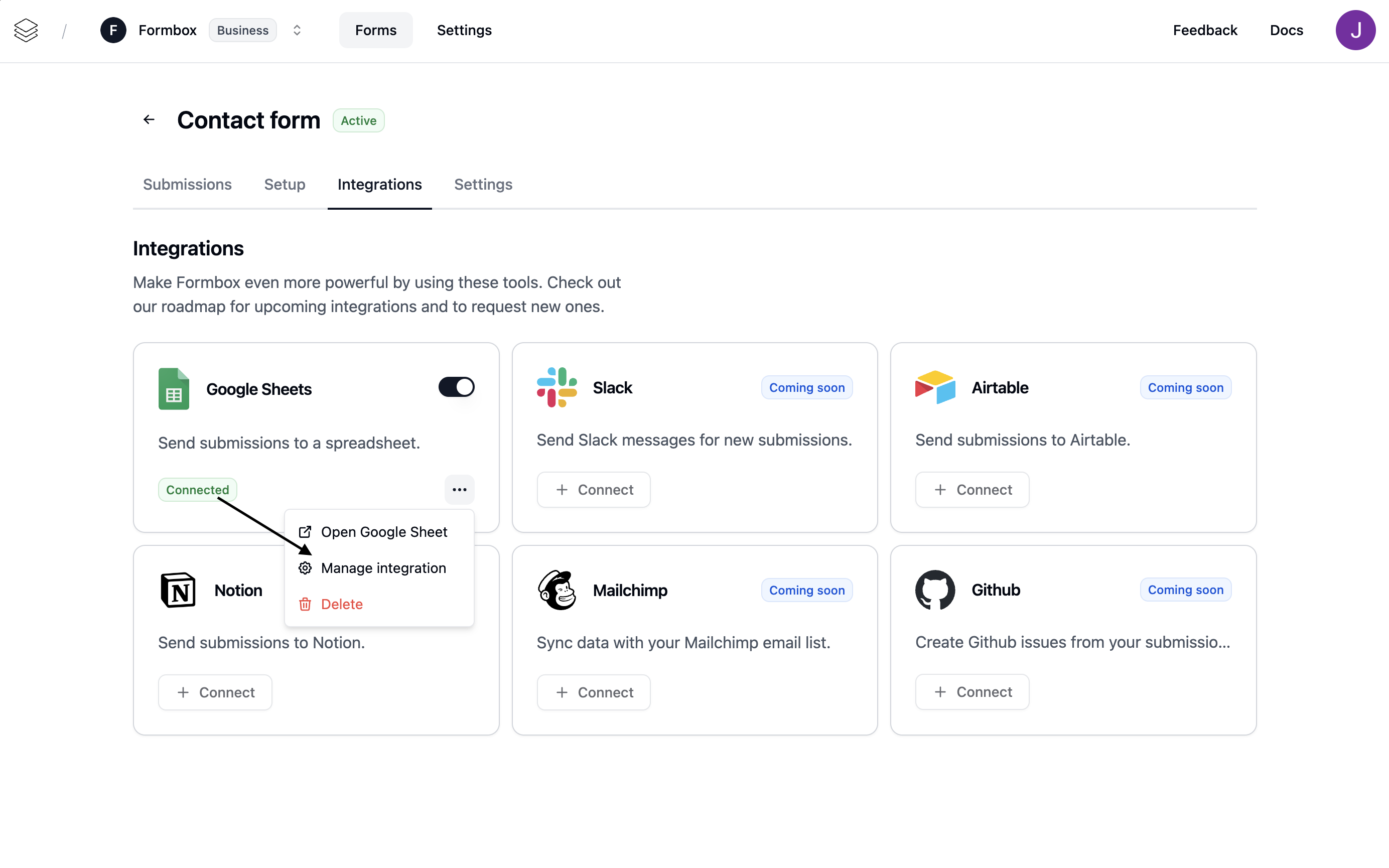
Once the integration is connected, Formbox will automatically create a new Google Sheet with the same name as your form. You can access the google sheet by clicking on the **Open Google Sheet** button in the dropdown menu.
A window will pop up, prompting you to connect your Google account. Select the Google account you want to use and allow Formbox to access your Google Sheets.
Once the integration is connected, Formbox will automatically create a new Google Sheet with the same name as your form. You can access the google sheet by clicking on the **Open Google Sheet** button in the dropdown menu.
 You can rename the Google Sheet if you want without affecting the integration.
 ## Editing your spreadsheet
You can style your Google Sheet, freeze rows, add filters, add formulas, add custom columns, and edit existing rows.
Formbox uses the column headers created from your form fields to keep new submissions organized. If those headers are renamed, deleted, or moved out of the first row, new submissions may appear in unexpected columns or Formbox may add the missing columns back.
For the most reliable syncing, keep the first row as the header row and avoid changing the Formbox-generated column names.
## Customizing the integration
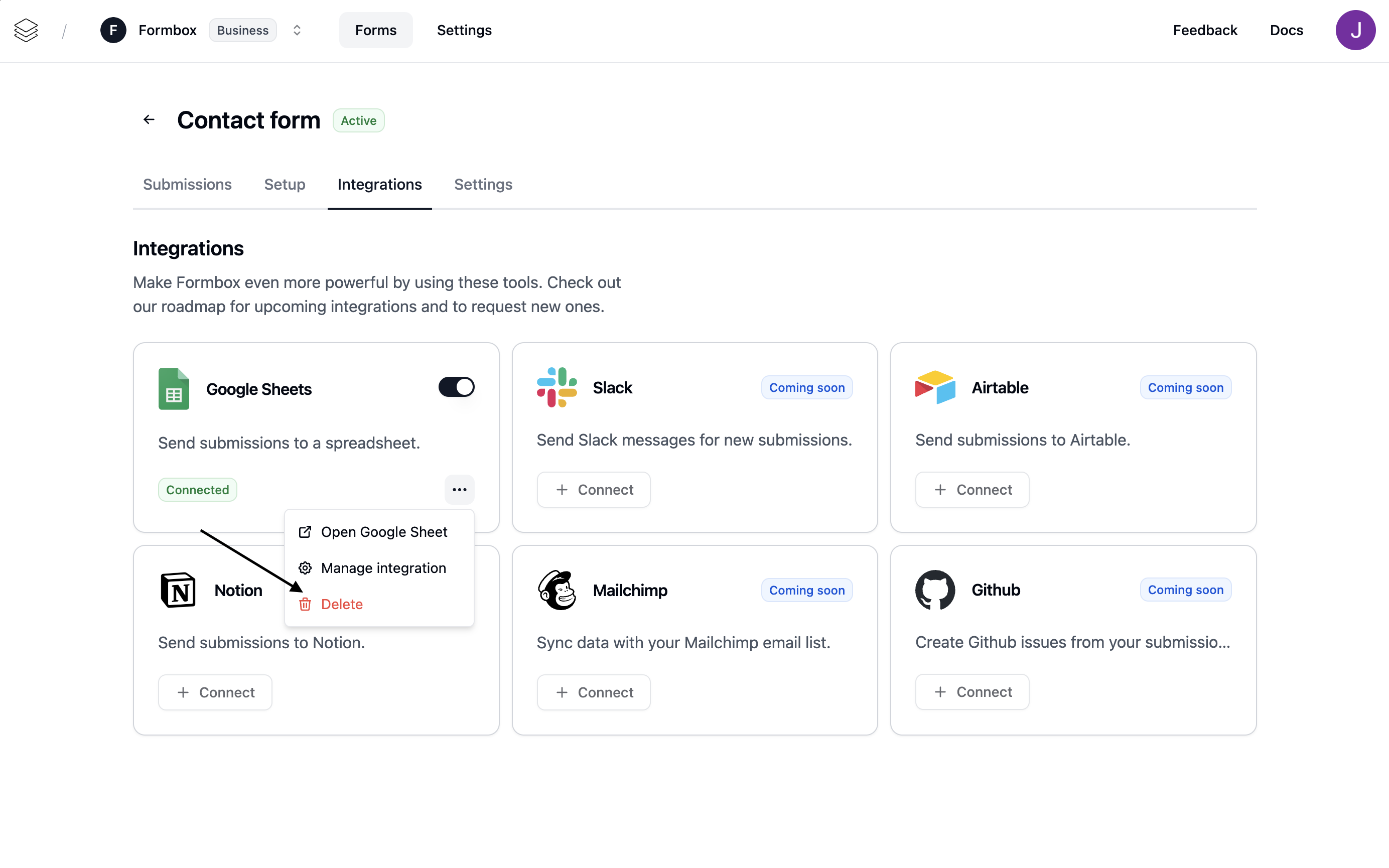
You can customize the Google Sheets integration by clicking on the **Manage integration** option in the dropdown menu.
## Editing your spreadsheet
You can style your Google Sheet, freeze rows, add filters, add formulas, add custom columns, and edit existing rows.
Formbox uses the column headers created from your form fields to keep new submissions organized. If those headers are renamed, deleted, or moved out of the first row, new submissions may appear in unexpected columns or Formbox may add the missing columns back.
For the most reliable syncing, keep the first row as the header row and avoid changing the Formbox-generated column names.
## Customizing the integration
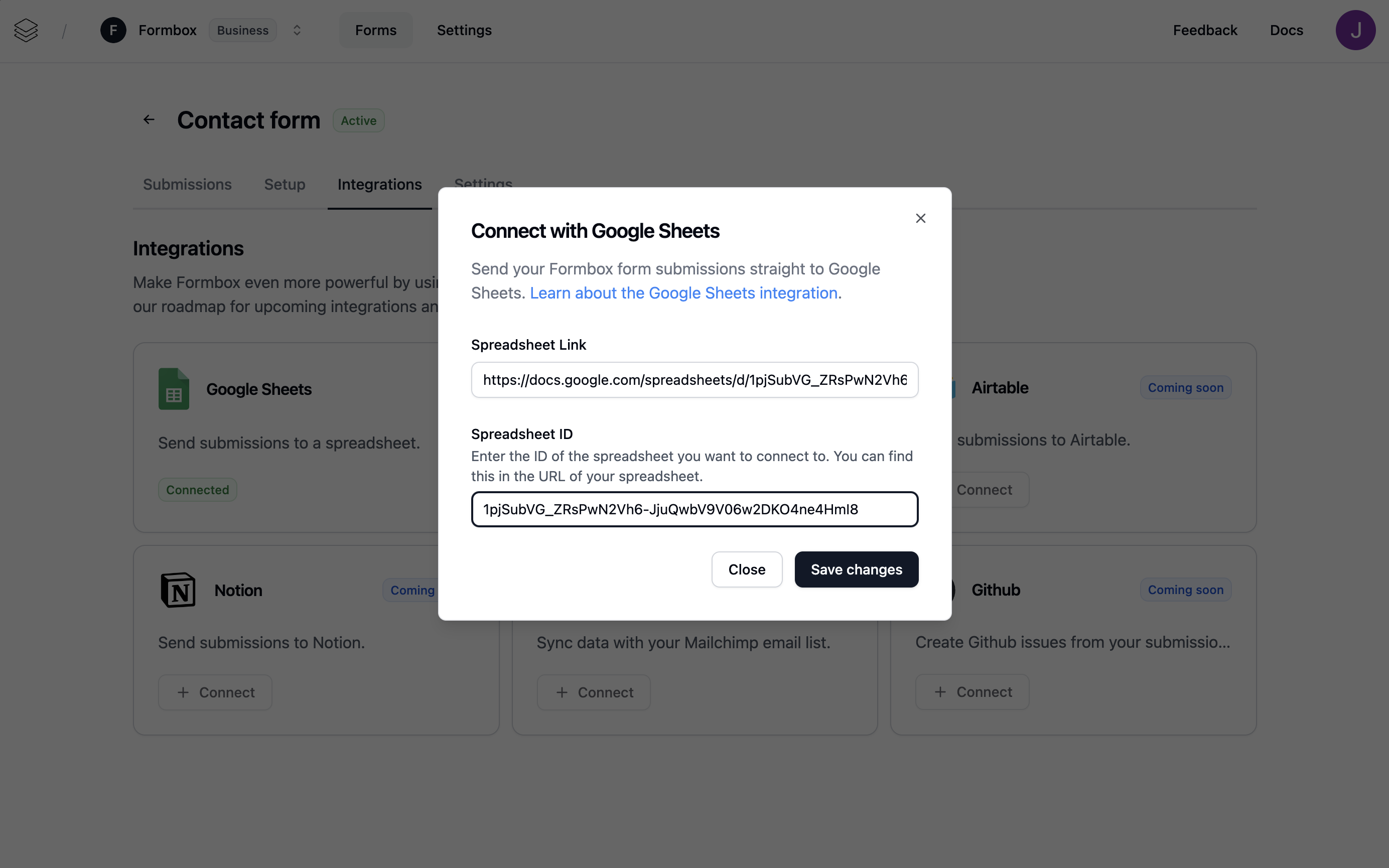
You can customize the Google Sheets integration by clicking on the **Manage integration** option in the dropdown menu.
 Here you can change the Google Sheet where the form submissions are sent to, by updating the **Spreadsheet Id** field.
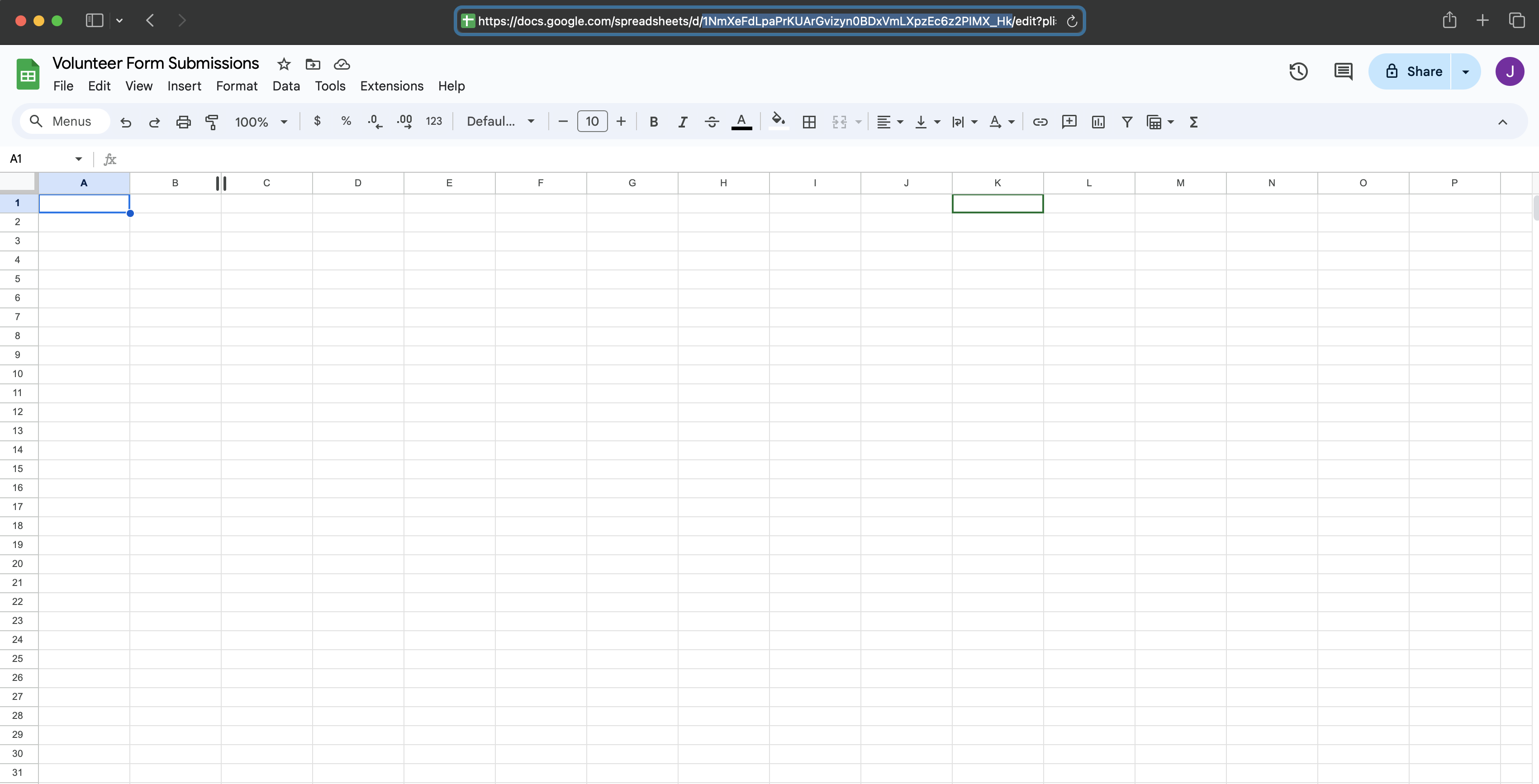
 You can find the **Spreadsheet Id** in the URL of your Google Sheet. It is the long string of letters and numbers between `/d/` and `/edit` of the URL.
 ## Deleting the integration
If you no longer want your integration to send form submissions to your spreadsheet, click the **Delete** option in the dropdown menu. Removing the integration won’t delete the Google Sheet document itself, but any future form submissions will stop being added to that spreadsheet.
## Deleting the integration
If you no longer want your integration to send form submissions to your spreadsheet, click the **Delete** option in the dropdown menu. Removing the integration won’t delete the Google Sheet document itself, but any future form submissions will stop being added to that spreadsheet.