> ## Documentation Index
> Fetch the complete documentation index at: https://docs.formbox.app/llms.txt
> Use this file to discover all available pages before exploring further.
# Astro
> Learn how to integrate your Formbox form with Astro.
## What is Astro?
Astro is the web framework for building content-driven websites like blogs, marketing, and e-commerce. Astro is best-known for pioneering a new frontend architecture to reduce JavaScript overhead and complexity compared to other frameworks.
## Prerequisites
Before you begin, you'll need to have a Formbox form. If you don't have one yet, you can create a new form by following the steps in the [Introduction](/introduction#step-2-creating-a-form-in-formbox) guide. Once you have your form, make a note of the form's endpoint url in the setup tab of your form page, as you'll need it later.
## Creating a new Astro project
To get up and running quickly, we will follow the official Astro installation guide to create a new Astro project. In your terminal, run the following command:
```bash theme={null}
npm create astro@latest
```
After the prompts, the create astro command will create a folder with your project name and install the required dependencies.
Go to the new directory for the new website:
```bash theme={null}
cd astro-with-formbox
```
Start the development server:
```bash theme={null}
npm run dev
```
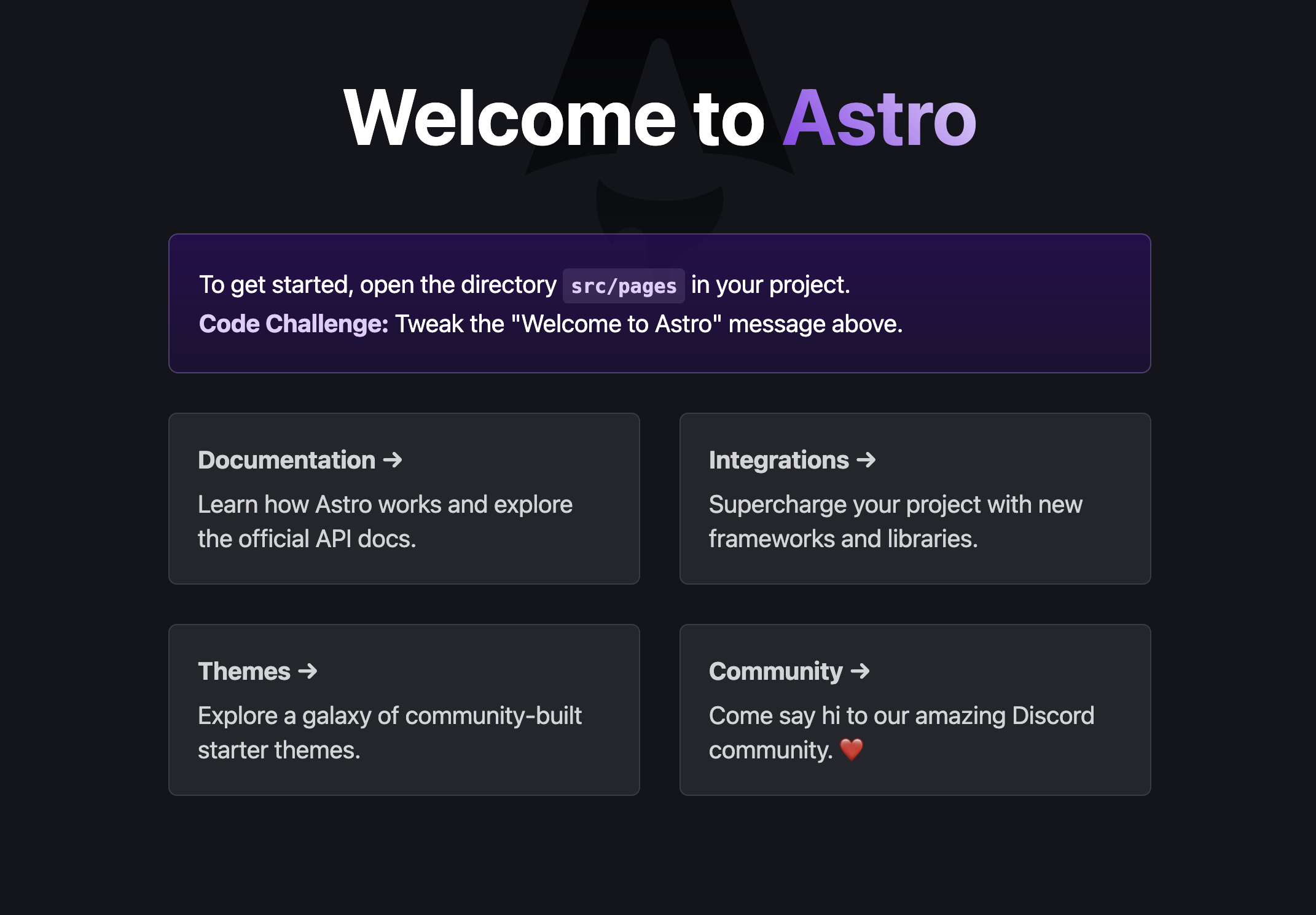
Open your browser and navigate to `http://localhost:4321`. You should see a new Astro application running.
 ## Adding your Formbox form to your Astro project
Now that we have a new Astro project set up, let's add our Formbox form to it.
For styling purposes, we'll use Tailwind CSS. You can learn how to add Tailwind CSS to your project by following the Astro installation guide.
Once you have Tailwind CSS set up, let's add our form.
Open up the `index.astro` file within the root of the `pages` directory and replace everything in the file with the following code block:
```jsx index.astro theme={null}
```
Paste the form endpoint url you copied from Formbox into your form’s `action` attribute as shown in the code block above.
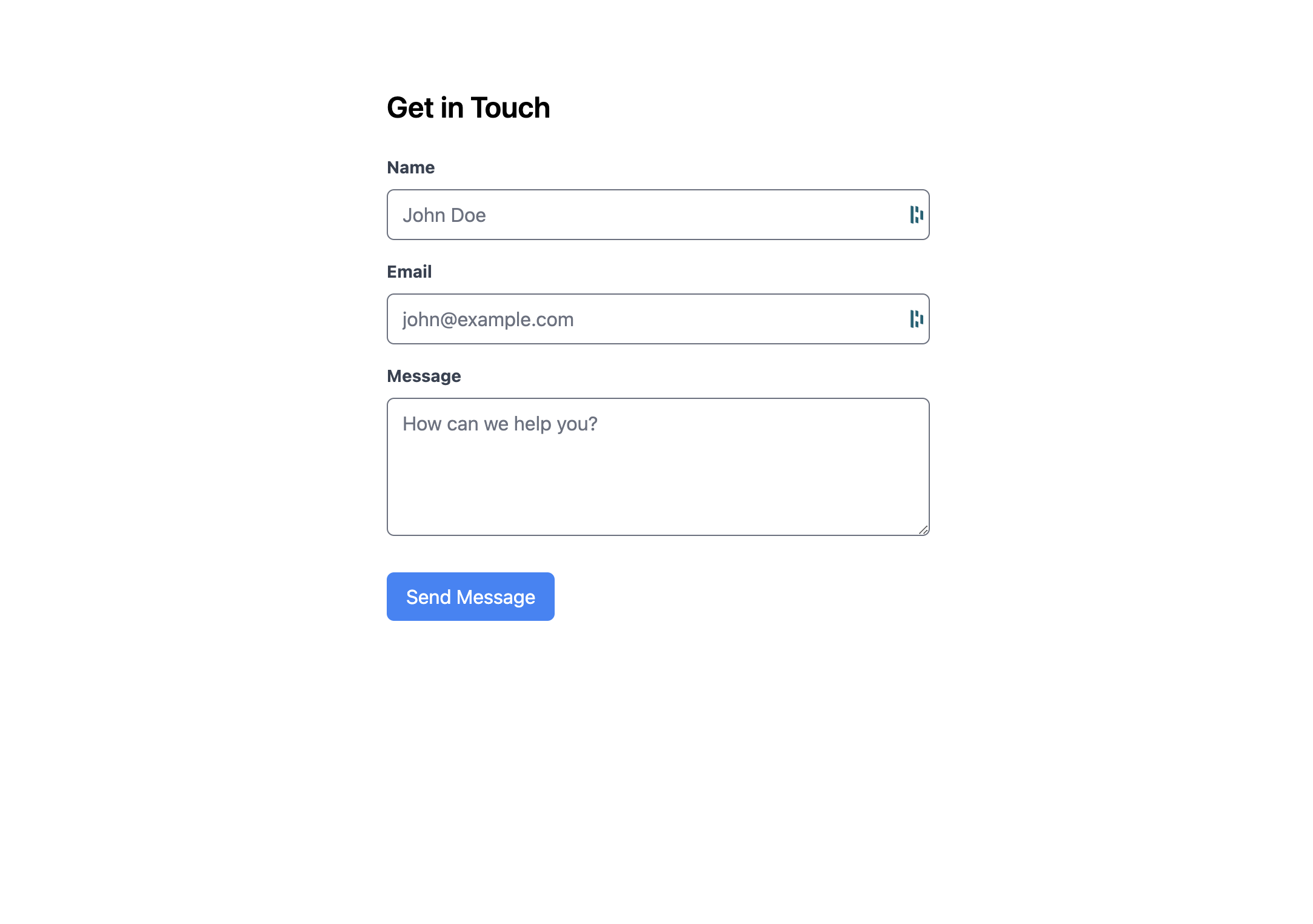
Save the file and navigate to `http://localhost:4321` in your browser. You should see a form that you can fill out and submit.
## Adding your Formbox form to your Astro project
Now that we have a new Astro project set up, let's add our Formbox form to it.
For styling purposes, we'll use Tailwind CSS. You can learn how to add Tailwind CSS to your project by following the Astro installation guide.
Once you have Tailwind CSS set up, let's add our form.
Open up the `index.astro` file within the root of the `pages` directory and replace everything in the file with the following code block:
```jsx index.astro theme={null}
```
Paste the form endpoint url you copied from Formbox into your form’s `action` attribute as shown in the code block above.
Save the file and navigate to `http://localhost:4321` in your browser. You should see a form that you can fill out and submit.
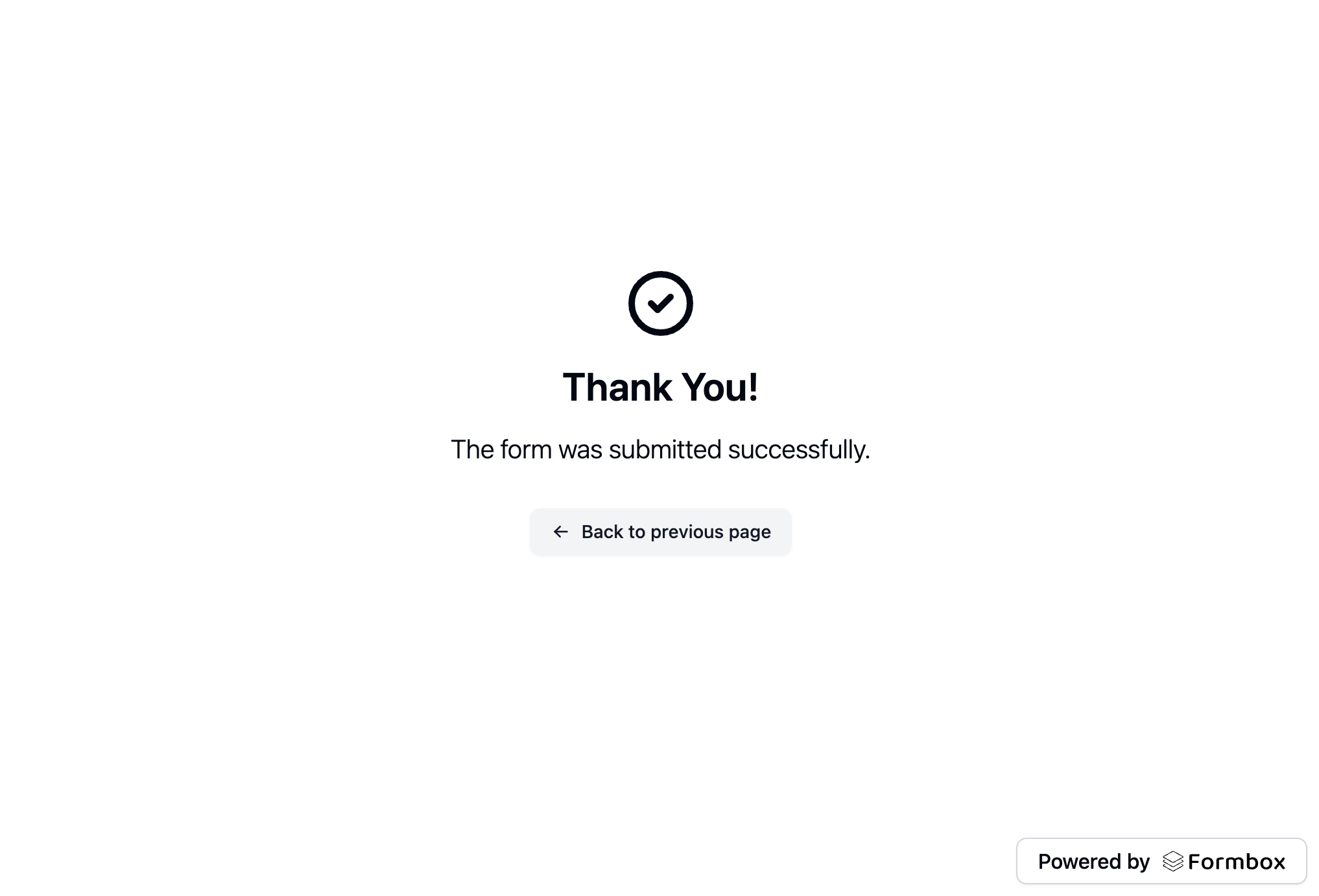
 **And that's it!** Now after filling out and submitting the form you should see the default submission success page displayed.
 Comming soon...