> ## Documentation Index
> Fetch the complete documentation index at: https://docs.formbox.app/llms.txt
> Use this file to discover all available pages before exploring further.
# SMTP custom email domain
> Send auto-response emails from your custom email domain using SMTP
Custom email domains are only available on the **Professional** and **Business** plans.
## How to enable custom email domain
Go to the form you want to enable the custom email domain for and navigate to the `Settings` tab.
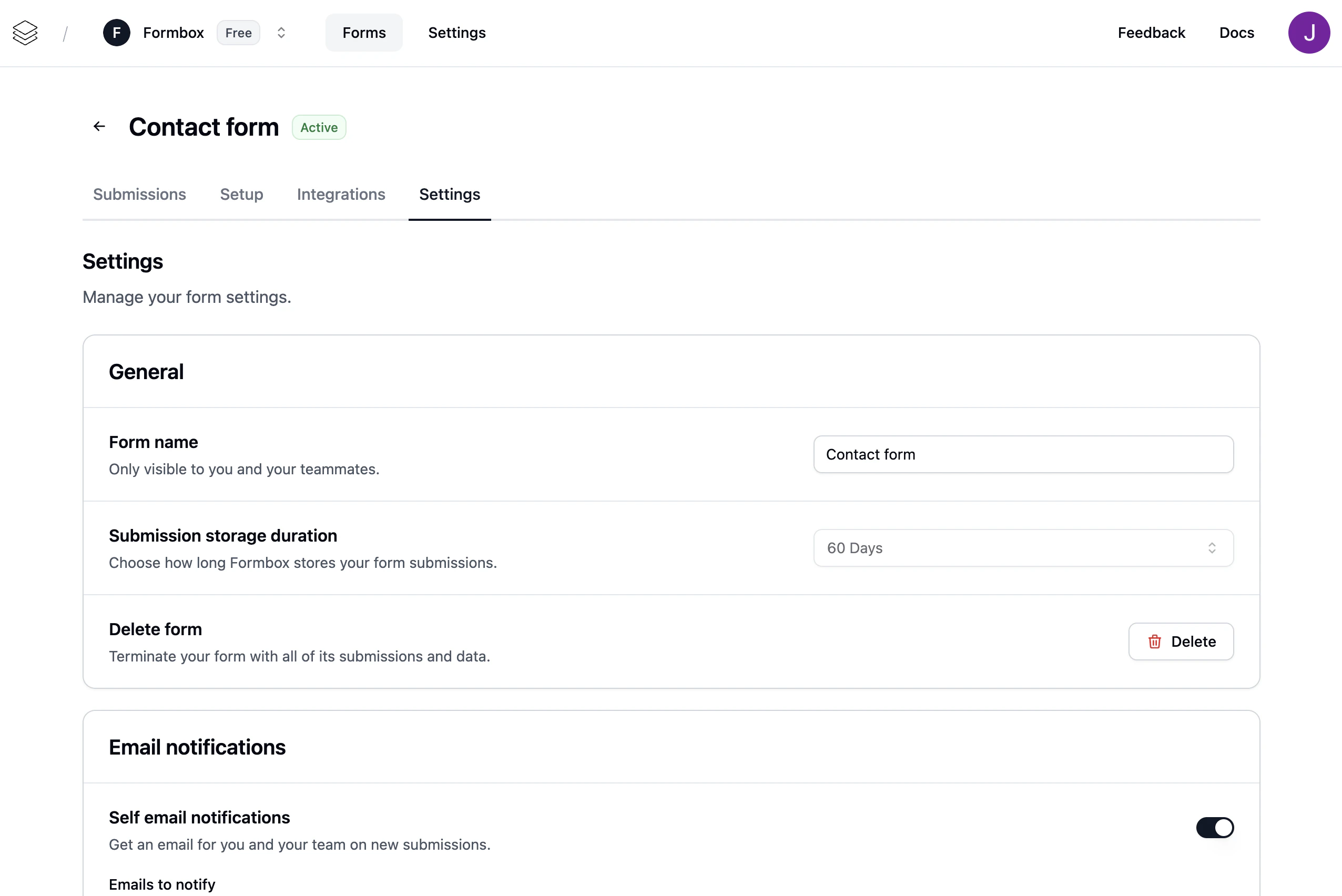 Navigate to `Email configuration` section, and enable the toggle. The `Respondent email notifications` toggle will need to be enabled as well.
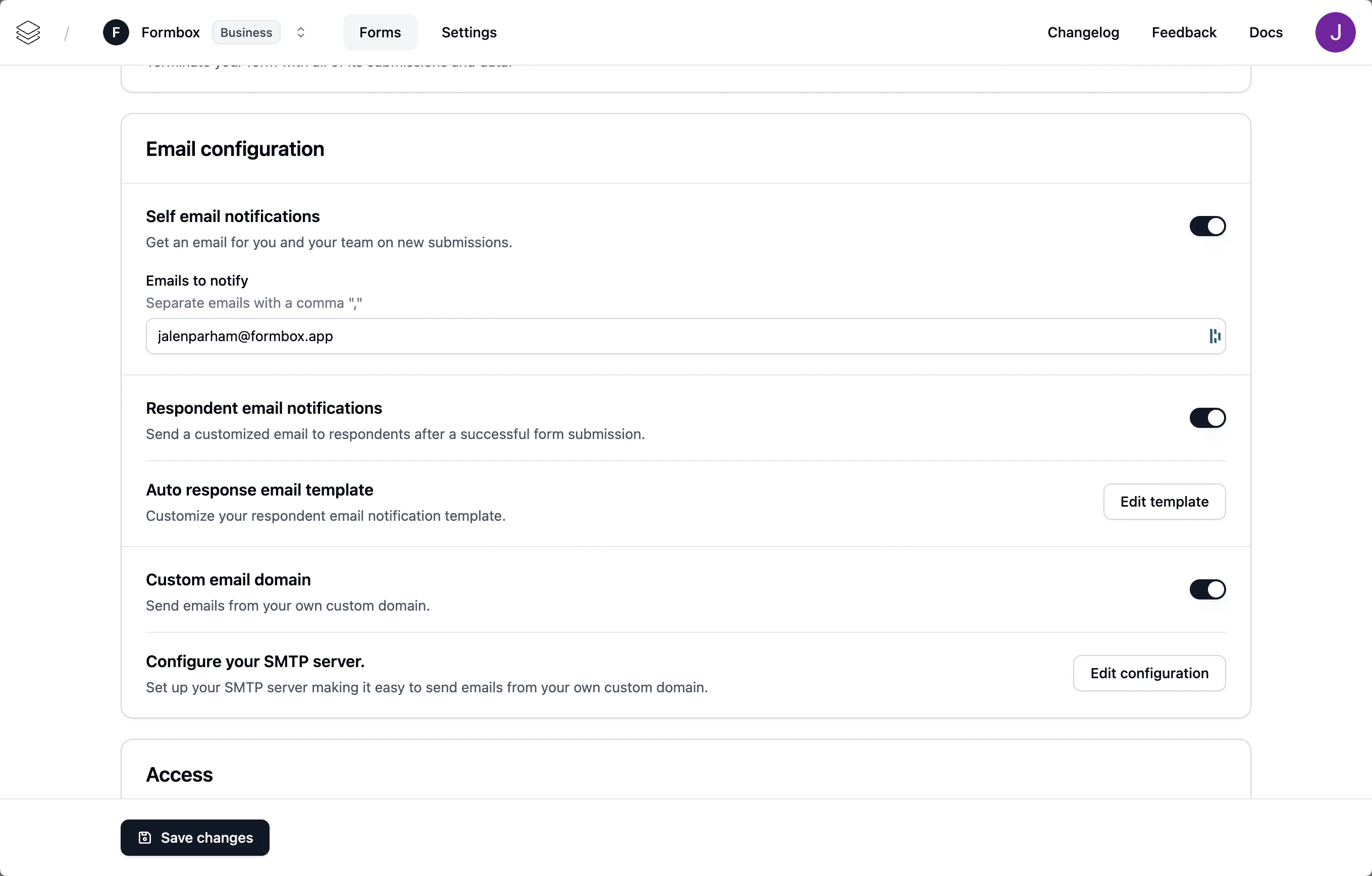 From there, you can update the SMTP settings by clicking on the `Edit configuration` button.
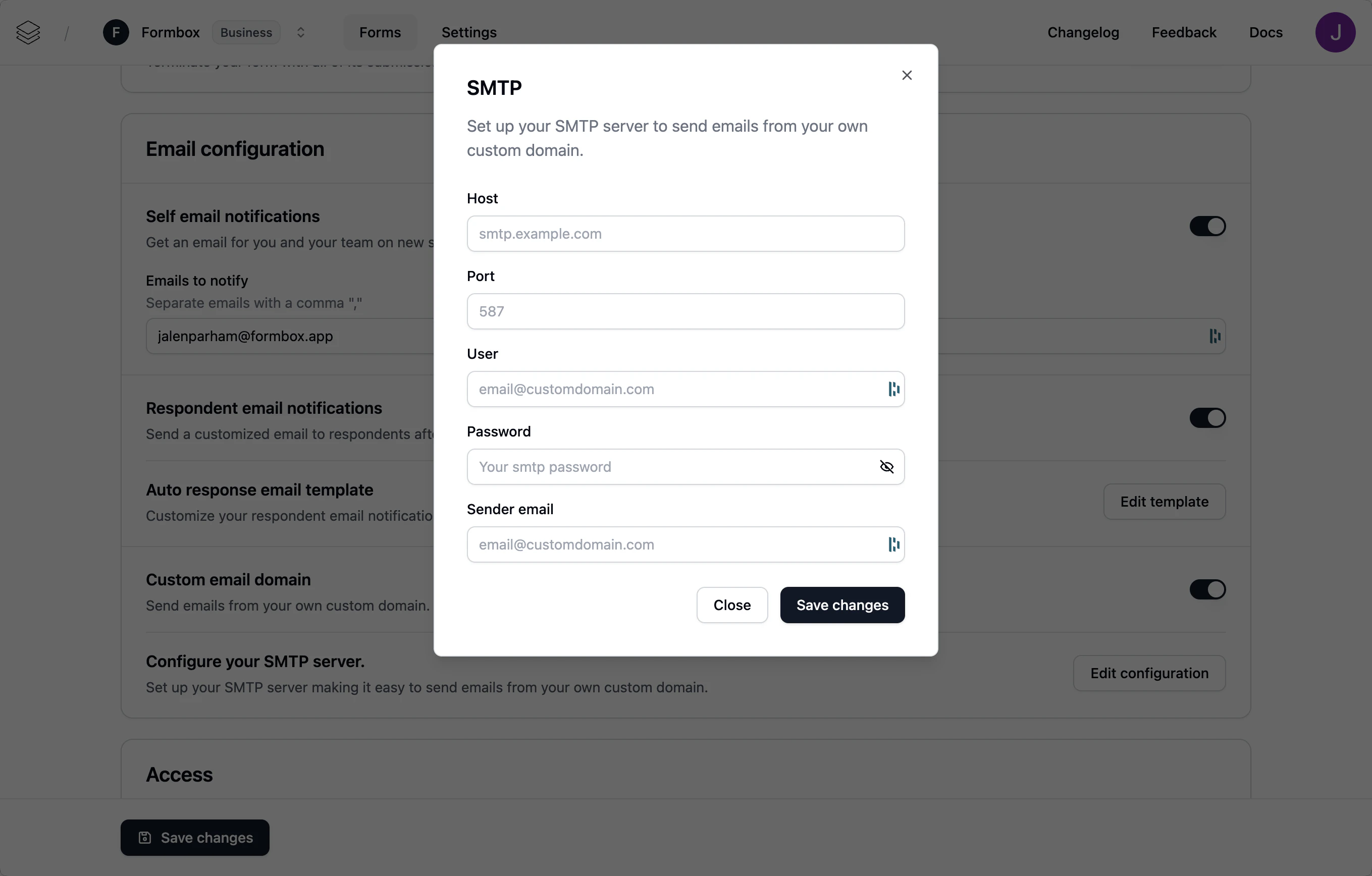 Done, now every time a customer submits a message to your form, they will get an auto response email notification from your custom email domain.