> ## Documentation Index
> Fetch the complete documentation index at: https://docs.formbox.app/llms.txt
> Use this file to discover all available pages before exploring further.
# Domain restrictions
> Setup your forms to only accept form submissions from a specific domain and all it's subdomains.
Domain restrictions are only available on the **Professional** and **Business** plans.
## Configuring your forms domain restrictions
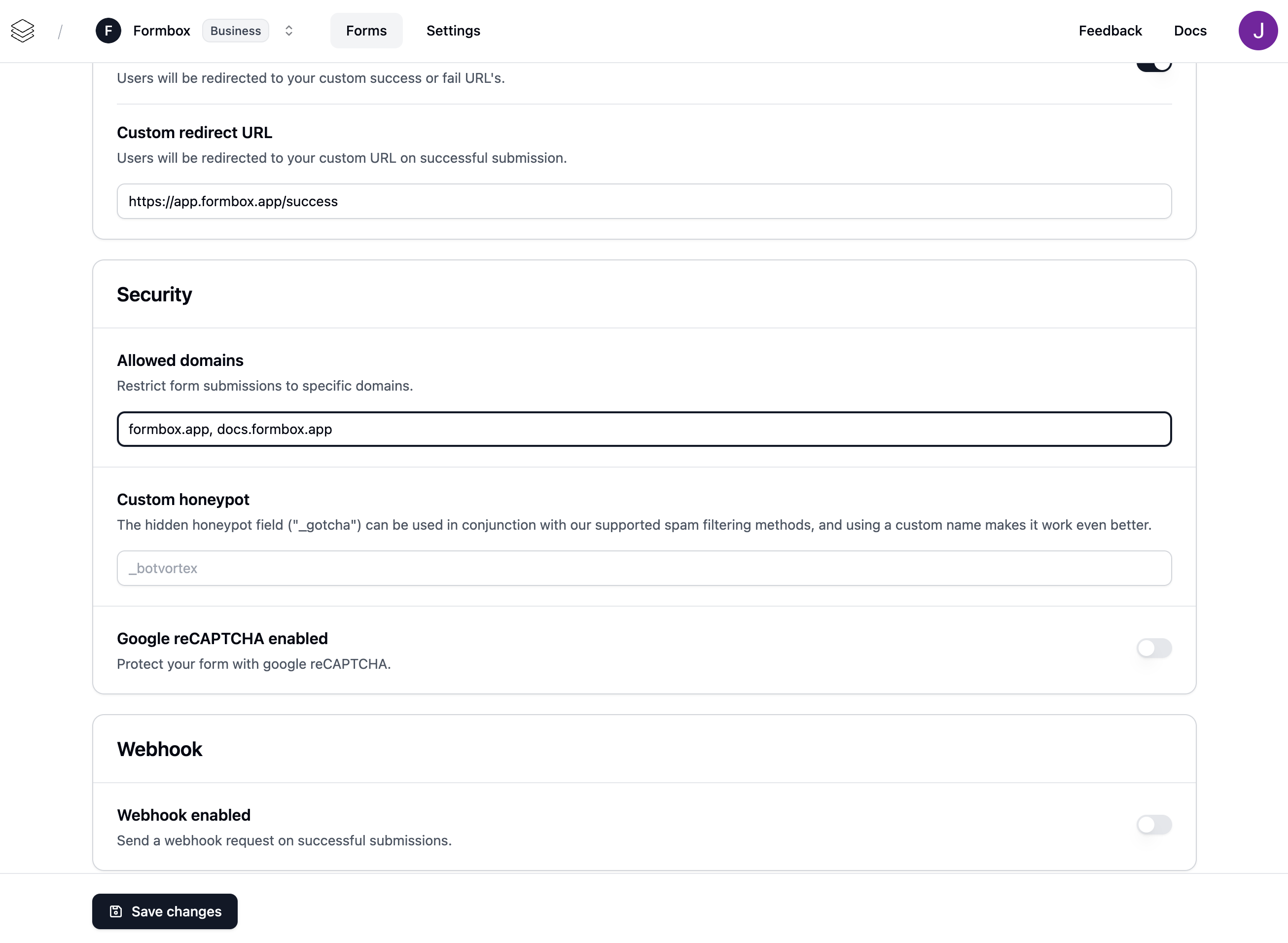
Go to your form settings and scroll down to the **Security** section. Here you can add the domains and subdomains you want to restrict your form to.
 In order to use Formbox's domain restrictions you must ensure your site's `Referrer-Policy` sends your site's origin information to Formbox.
By default, sites usually have the `Referrer-Policy` set to `strict-origin-when-cross-origin` which is compatible with Formbox. Learn more about referrer policy here.
In order to use Formbox's domain restrictions you must ensure your site's `Referrer-Policy` sends your site's origin information to Formbox.
By default, sites usually have the `Referrer-Policy` set to `strict-origin-when-cross-origin` which is compatible with Formbox. Learn more about referrer policy here.